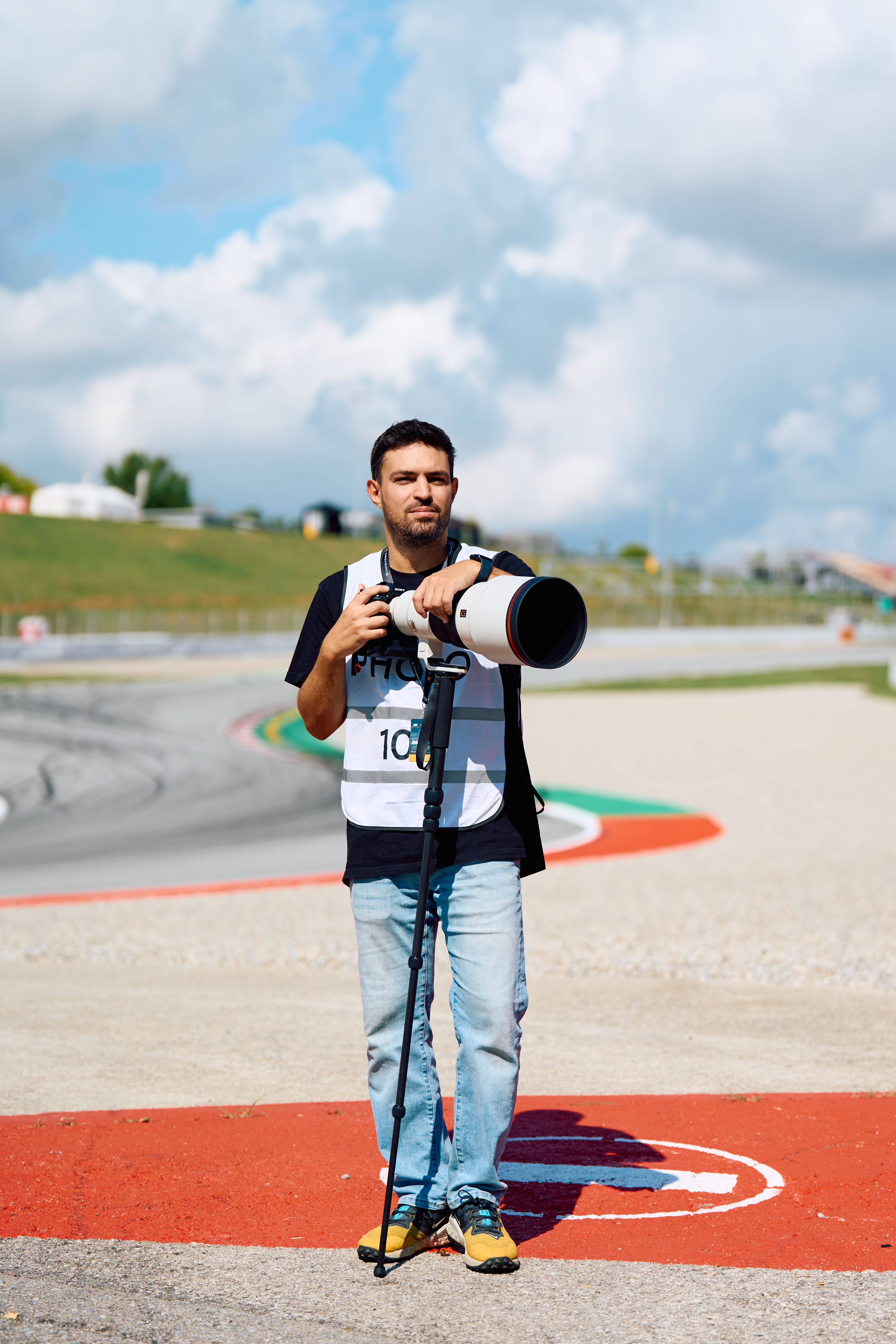
A football match has two halves. A basketball game has four quarters. A tennis match has sets with changeovers. In every sport, there are natural pauses: and those pauses are when the real work happens for the photographer sitting courtside with a laptop.
The audience expects photos to appear online minutes after a goal, a dunk, or a match point. Not after the event. Not the next morning. Minutes. The photographers and editors who consistently deliver fastest win the assignments, the licensing deals, and the reputation.
This article covers the on-field workflow that professional sports photographers use to cull, edit, and deliver photos during live events: and how to automate the delivery step so it never slows you down.
The pressure of live delivery
The economics of sports photography are simple: the first publishable image of a key moment has the most value. Every minute of delay reduces that value. By the time you're back at the hotel room editing at your leisure, the moment has been covered by someone faster.
This creates a workflow that looks very different from studio or editorial photography. There is no time for careful retouching. There is no time for second-guessing the edit. And there is absolutely no time for manually opening an FTP client, navigating folders, and waiting for uploads to complete.
The photographers who thrive in this environment have optimized every step of the chain. The ones who struggle are usually losing time not on the photography itself, but on the logistics between the shot and the delivery.
The on-field workflow, step by step
Here is a typical live event workflow, from the moment the shutter fires to the moment the picture desk receives a finished JPEG:
1. Shoot in bursts between action
The photographer shoots during active play. Between breaks (a timeout, a substitution, halftime) they pull the memory card or connect the camera via USB or wireless tether. The RAW files land on the laptop.
2. Cull in PhotoMechanic
PhotoMechanic is the industry standard for fast culling because it renders previews from embedded JPEGs rather than processing the full RAW file. This means a card with 400 images loads in seconds, not minutes. The photographer scans through at full speed, tagging the keepers: typically 8 to 15 images from a 30-minute period of play.
The culling criteria are ruthless at a live event: sharp focus on the subject, strong composition, peak action moment, and (crucially) no duplicates. One perfect frame per moment, not three similar ones.
3. Move selects to the editing folder
The tagged selects need to get from PhotoMechanic to Capture One (or Lightroom, or whichever editor you use). There are several approaches:
- Export from PhotoMechanic. Use File → Export Photos to copy only the tagged images to a specific folder that Capture One watches.
- Drag and drop. Select the tagged images in PhotoMechanic and drag them to the Capture One import folder in Finder.
- Use a watched folder. Set up PhotoMechanic's output to a folder that Capture One's hot folder feature monitors automatically.
The key is that only the selects (not the entire card) reach the editor. This keeps the editing queue tight and focused.
4. Edit in Capture One
Once the RAW selects are imported, the editing begins. At a live event, this is not the time for pixel-level retouching. The typical edit takes 30 seconds to 2 minutes per image:
- Apply a base preset. A pre-built style for the venue's lighting conditions: indoor arena, outdoor daylight, night game under floodlights.
- Exposure and white balance. Quick adjustment if the auto settings missed.
- Crop. Tighten the composition, ensure the subject is properly framed, match the agency's preferred aspect ratio.
- Skin tones. A quick check that skin looks natural: important under mixed artificial lighting.
- IPTC metadata. Caption, photographer credit, event name, keywords. Many agencies require this embedded in the JPEG.
The selects are then exported as JPEGs to the delivery folder. In Capture One, this is a Process Recipe configured for the client's specifications: typically sRGB JPEG, specific resolution, quality 10-12.
5. Automatic delivery via FTPush
This is where the automation saves the most time. FTPush watches the Capture One export folder. The moment a JPEG appears, it's uploaded to the client's FTP server automatically.
There is no step 6. The photographer is already back to shooting the next period of play while the previous batch uploads in the background.
↓
PhotoMechanic: cull & tag selects (30 seconds)
↓
Move selects to editing folder
↓
Capture One: edit & export JPEGs (2-5 min per batch)
↓
FTPush: automatic upload to client server (background)
↓
Picture desk receives finals
Setting up FTPush for live event delivery
The configuration for live event work is straightforward but specific:
- Set the watched folder to Capture One's export destination. This is the folder where Process outputs land.
- Enter the delivery server credentials. Your agency, wire service, or client provides FTP/SFTP/FTPS credentials and a destination folder path.
- Filter to JPEGs only. Set the extension filter to
.jpgso only delivery-ready files are transmitted. Capture One may create temporary files or sidecars in the output folder: the filter ignores them. - Enable the file stability checker. Capture One writes large JPEGs progressively. The stability checker (default 2 seconds) ensures the file is fully written before upload starts. No partial files, no corrupt deliveries.
- Set simultaneous uploads to 2-3. Press room Wi-Fi is shared among dozens of photographers. Modest parallelism keeps your uploads moving without hogging the connection.
- Enable Finder tags. A green tag on a file in Finder means it's been delivered. During a hectic event, this visual confirmation is invaluable.
- Turn on error notifications. If the connection drops or a file fails, you want to know immediately: not discover it after the event.
Managing bandwidth at the venue
Press room internet at sports venues ranges from excellent (major international events) to borderline unusable (local venues, outdoor events). FTPush includes a bandwidth limiter per connection that lets you cap upload speed in KB/s.
Why would you limit your own upload speed? Because an unrestricted upload can saturate a shared connection, causing your own downloads to stall and annoying every other photographer in the room. A bandwidth cap of 500-1000 KB/s is often enough to deliver a batch of 10 JPEGs in under a minute while leaving room for other traffic.
Multiple delivery destinations
At many events, a single photographer delivers to multiple clients simultaneously. A typical setup might include:
- The primary wire agency (e.g., via SFTP to their ingest server)
- The league or federation's media portal (FTP with specific folder structure)
- A personal website or social media staging server
- A stock agency for secondary licensing
FTPush handles this with multiple connections, all watching the same export folder. One export from Capture One triggers parallel uploads to every configured destination. Each connection has its own credentials, remote folder, and bandwidth settings.
The halftime rush
Halftime is the most intense period for the sports photographer. The first half produced hundreds of frames. The picture desk expects a comprehensive selection: not just the goals or key plays, but atmosphere, coaches, fans, warm-ups. A typical halftime delivery might be 30 to 50 edited images in 15 minutes.
This is where the automation pays for itself many times over. Without FTPush, the photographer would spend 5-10 of those 15 minutes managing uploads manually. With FTPush, those minutes go entirely to editing. The uploads happen in the background, and FTPush's notification batching sends a single confirmation when the batch completes rather than 50 individual alerts.
Post-upload actions
After delivering a file, FTPush can optionally:
- Delete the local file. Useful if your export folder serves as a pure transit point and you don't need to keep copies after delivery.
- Move to an archive folder. Keeps the export folder clean while preserving a local copy. At the end of the event, you have a tidy archive of everything you delivered.
For most live events, the archive option is safest. It keeps the export folder from getting cluttered while preserving a record of exactly what was delivered and when.
What makes this workflow fast
The total time from shutter press to delivery server depends on many factors, but the typical breakdown for a single batch at a live event looks like this:
- Card ingest: 30-60 seconds (fast card reader, USB 3.1+)
- Culling in PhotoMechanic: 30-90 seconds for a burst of 50-100 frames
- Moving selects: 5-10 seconds
- Editing in Capture One: 2-5 minutes for 8-12 selects
- Export: 10-30 seconds (SSD, JPEG output)
- Upload via FTPush: 10-60 seconds per file depending on size and bandwidth
The critical point: the upload happens while the photographer is already shooting again. It's not a sequential step that blocks the next batch. By the time the next card needs culling, the previous batch is already on the server.
Total time from moment to delivery: typically 5 to 8 minutes. Without automation, add 3-5 minutes of manual FTP work per batch. Over a full event with 6-8 delivery batches, that's 20-40 minutes saved: time that goes directly back into shooting and editing.
Getting started
FTPush runs as a menu bar app: no windows, no dock icon. It sits quietly while you work in PhotoMechanic and Capture One, uploading deliveries in the background. The 14-day free trial is enough to test it through several real events before committing.
For photographers who also receive files from the field (remote editors), pair it with FTPull for automatic downloads. The FTPSuite bundle includes both apps at a discount.