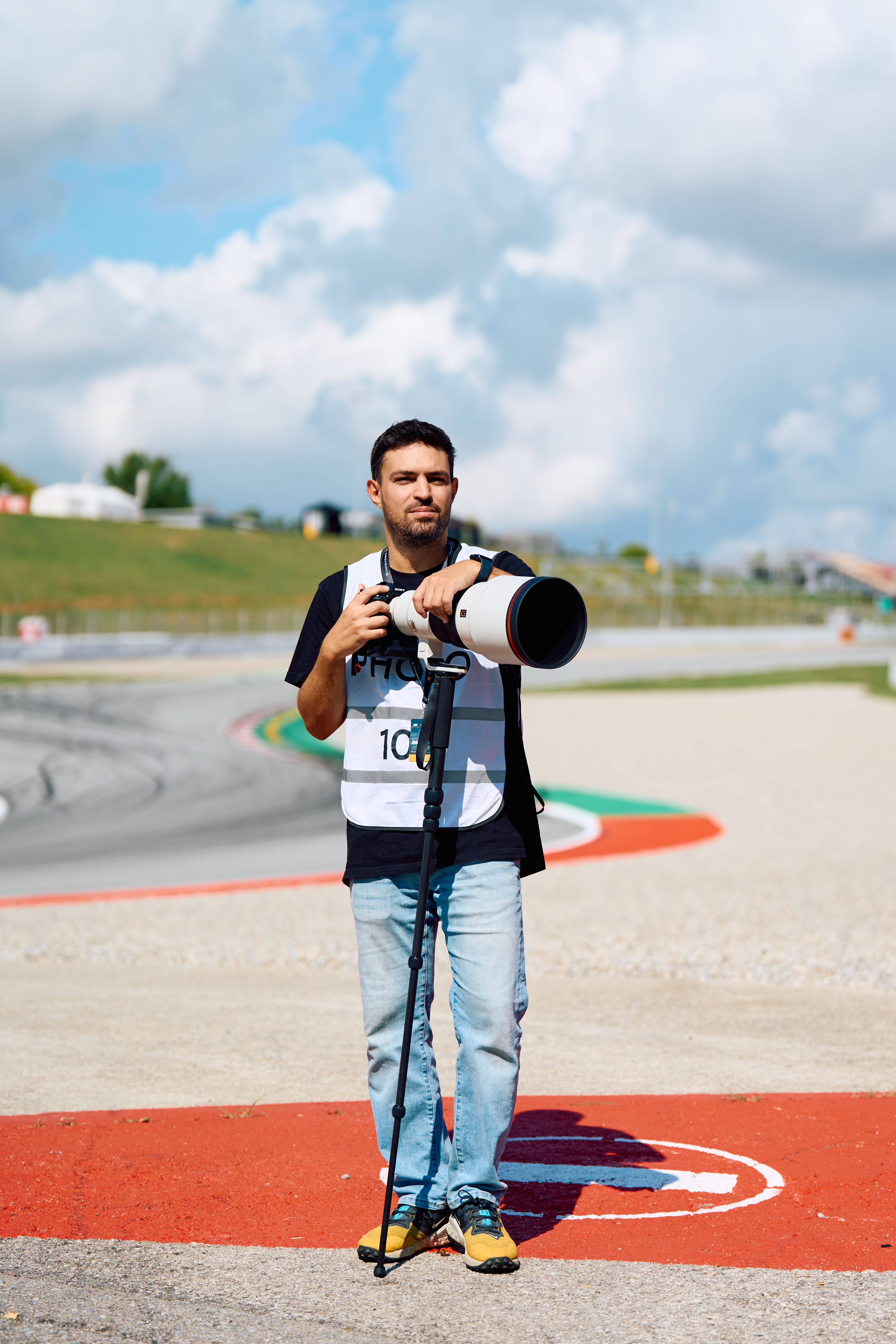
In professional sports photography, the chain from shutter press to published image involves multiple people: often working from different locations. A photographer shoots courtside. A remote editor sitting hundreds of kilometers away edits and delivers. The entire process needs to happen in minutes, not hours.
The bottleneck is almost never the editing. It's everything around it: waiting for files to arrive, manually refreshing an FTP client, switching between apps, uploading finished images one by one. These small interruptions compound during a live event where every minute matters.
This guide walks through a real-world workflow that eliminates those interruptions entirely. Photos arrive automatically. Edits happen in Capture One. Finals are delivered to the client without ever leaving the editing app.
The problem with the traditional workflow
Here's what the typical remote editing workflow looks like at a sports event:
- The photographer shoots a burst during a play.
- Between plays, they cull selects and upload RAW files to an FTP server using FileZilla, Transmit, or a similar client.
- The remote editor checks the FTP server manually: refreshing the folder every few minutes to see if new files have arrived.
- When files appear, the editor downloads them, imports into Capture One, edits, exports JPEGs.
- The editor opens the FTP client again, navigates to the delivery folder, and uploads the finished JPEGs.
- The picture desk or client downloads the finals from the server.
This workflow has three painful failure points:
- Polling for new files. The editor has no idea when files are coming. They sit there refreshing, or they check too late and a batch of 40 images has been sitting on the server for ten minutes untouched.
- Partial downloads. If the photographer is still uploading when the editor starts downloading, the editor gets a truncated file: a corrupt JPEG or a RAW that Capture One can't open. The photographer usually doesn't signal when an upload is complete.
- Manual delivery. After editing, the upload step breaks the editor's flow. They leave Capture One, open the FTP client, find the folder, drag files in, wait. On a busy event, this happens dozens of times.
Every one of these steps can be automated.
The automated workflow
The goal is a pipeline where the remote editor's only job is to edit. Everything else (receiving files, delivering finals) happens in the background.
↓
FTPull detects new files on the server → downloads to local folder
↓
Capture One hot folder imports automatically
↓
Editor culls, edits, exports JPEGs to output folder
↓
FTPush detects new exports → uploads to delivery server
↓
Picture desk receives finals
Two apps run in the menu bar. FTPull handles the incoming side: monitoring the FTP server and downloading new files the moment they appear. FTPush handles the outgoing side: watching the export folder and uploading finished images automatically. The editor works in Capture One without interruption.
Setting up the incoming side: FTPull
FTPull is a macOS menu bar app that monitors a remote FTP, SFTP, or FTPS server and downloads new files automatically. Here's how to configure it for the sports photography workflow:
- Create a connection. Enter the FTP server credentials: the same server where the photographer uploads RAW selects. Choose FTP, SFTP, or FTPS depending on the server setup.
- Set the remote folder. Point FTPull to the folder where the photographer drops files: for example,
/event-2026/selects/. - Set the local folder. This should be a folder that Capture One will watch for imports. For example,
~/Pictures/Event-Incoming/. Every file FTPull downloads lands here. - Set the polling interval. For live events, use the shortest interval that the server allows: typically 30 to 60 seconds. FTPull checks the remote folder at this interval and downloads anything new.
- Filter by extension. Set FTPull to only download RAW files (
.CR3,.ARW,.NEF,.RAF) and XMP sidecars (.xmp). This avoids downloading any test JPEGs or non-relevant files the photographer may have left on the server. - Enable notifications. A macOS notification when a new batch arrives tells you it's time to switch to Capture One and start editing.
Capture One: the hot folder workflow
Capture One Pro supports hot folder import: a watched folder that automatically imports any new image that appears. Point it at FTPull's download destination, and every RAW file that arrives from the photographer is imported into your session or catalog within seconds.
The editing workflow becomes seamless:
- A notification from FTPull tells you new files have arrived.
- Switch to Capture One. The new images are already imported, visible in the browser.
- Cull, color-grade, crop. Apply your event preset. Adjust skin tones, exposure, crop for the agency's format.
- Select the finals and export. The output folder is FTPush's watched folder.
At no point do you open an FTP client. At no point do you manually download or upload anything. The files arrive, you edit, you export. That's it.
Setting up the Capture One output folder
In Capture One's export settings (Process Recipe), configure the output destination to a specific folder: for example, ~/Pictures/Event-Delivery/. This is the folder FTPush will watch. Make sure the recipe outputs the correct format: typically JPEG at the resolution and quality your client requires (sRGB, 300dpi, quality 10-12).
Setting up the outgoing side: FTPush
FTPush watches a local folder using macOS FSEvents and uploads new files the instant they appear. Configuration for the delivery side:
- Create a connection. Enter the FTP credentials for the delivery server: the server where the picture desk or client expects finals.
- Set the watched folder. Point it at Capture One's export destination:
~/Pictures/Event-Delivery/. - Set the remote delivery folder. Where finals should land on the server: for example,
/delivery/event-2026/finals/. - Filter extensions. Set FTPush to upload only
.jpgfiles. This avoids accidentally uploading any XMP sidecars, catalog files, or temporary files that Capture One might create in the output folder. - Enable the file stability checker. When Capture One exports a large JPEG, the file exists on disk before it's fully written. The stability checker (default 2 seconds) waits for the file to stop growing before starting the upload. No partial files.
- Enable Finder tags. Each exported JPEG gets color-coded in Finder: yellow (queued), blue (uploading), green (delivered). At a glance, you can see the delivery status of every file in the output folder.
Toggle the connection on. From this point, every JPEG that Capture One exports is automatically uploaded to the delivery server. The editor never touches an FTP client.
The rhythm during a live event
Once both apps are running, the event workflow falls into a natural rhythm:
- Photographer shoots a burst. Between plays, they cull on the camera or laptop, select the strongest frames, upload RAW selects to the server.
- FTPull downloads automatically. Within 30-60 seconds of the upload completing, the RAW files are on the editor's Mac. A notification appears.
- Editor opens Capture One. The files are already imported. Edit time: 2-5 minutes for a batch of 8-12 images from a single play. Quick color correction, crop, maybe a local adjustment on the key image.
- Editor exports. Select all, Process. Capture One writes JPEGs to the output folder.
- FTPush uploads instantly. The JPEGs are detected by FSEvents within a second. After the stability check, uploads begin. For a 5MB JPEG on a decent connection, upload time is seconds.
- Picture desk receives. The finals are on the delivery server, typically within 3-4 minutes of the photographer pressing the shutter.
The editor stays in Capture One. The only context switch is glancing at a notification. During halftime or breaks, the editor can review the Finder tags on the delivery folder to confirm everything went out.
Handling common issues
Slow or unstable connections
Sports venues are notorious for unreliable internet. FTPush includes a bandwidth limiter per connection: useful when you're sharing a press room Wi-Fi with fifty other photographers. If the connection drops, FTPush retries automatically. Failed uploads are marked red in Finder and logged in the app's history.
FTPull handles network issues similarly: if a download fails or a connection timeout occurs, it retries on the next polling cycle. No files are lost.
Multiple photographers, one editor
If you're editing for multiple photographers at the same event, create a separate FTPull connection for each photographer's server folder. Each connection downloads to its own local subfolder. In Capture One, set up the hot folder to watch the parent directory with subdirectory monitoring enabled.
Multiple delivery destinations
Some events require delivery to multiple clients simultaneously: the team's marketing department, a wire agency, and the league's media portal. Create multiple FTPush connections, all watching the same export folder but uploading to different servers. One export, parallel delivery to all destinations.
Large batches during halftime
At halftime, the photographer might upload 80-100 selects at once. FTPull downloads them all. FTPush's notification batching groups upload confirmations so you get one notification per batch instead of 80 individual alerts. The simultaneous upload limit (configurable, 1-8 parallel uploads) lets you balance speed against server load.
Why this workflow works
The entire automation layer is invisible to the editor. Both FTPull and FTPush run as menu bar apps: no windows to manage, no dock icons cluttering the screen. Capture One gets full focus.
The technical underpinning matters too:
- FTPull uses server polling because FTP servers don't support push notifications. The polling interval determines latency (set it low for live events.
- FTPush uses FSEvents) a macOS kernel-level API: for near-instant detection of new files. No polling, no delay. The moment Capture One finishes writing a JPEG, FTPush knows about it.
- Both apps handle file integrity. FTPull downloads to a temp location first. FTPush waits for files to stabilize. No partial, corrupt, or zero-byte files are ever transferred.
- Both support FTP, SFTP, and FTPS. Most agency servers use SFTP. Some legacy systems still run plain FTP. Venue-provided servers sometimes use FTPS. The protocol is configured per connection: mix and match as needed.
What you need to get started
The full setup requires:
- A Mac running macOS 13 (Ventura) or later.
- FTPull: for automatic downloads from the photographer's server.
- FTPush: for automatic uploads of finished edits.
- Capture One Pro (or any editor that supports hot folder import and a fixed export destination).
- FTP server credentials for both the incoming and delivery servers.
Both FTPull and FTPush offer a 14-day free trial: enough to test the entire workflow through a real event. Or get both together with the FTPSuite bundle at a discount.
Once configured, the workflow runs in the background forever. The photographer uploads, the editor edits, the client receives. No manual transfers. No app switching. No files sitting on a server waiting to be noticed.